Get paid on the spot. Stop chasing money.
Finish the job, send the invoice from your phone, and let the client pay right there by bank transfer or card. Take a deposit when they approve the estimate. Let polite reminders follow up for you. Cash and checks? Mark them paid in two taps.
Invoices, online payments and payment requests are included on every plan.
Why this matters
The waiting, the chasing, the awkward "just following up" texts? Handled.
No more "is the check in the mail?"
Clients pay straight from the invoice by bank transfer or card. Cash and checks get marked paid on the day they came in. Either way, you know where you stand.
No more awkward follow-ups
Turn on automatic reminders and BuilderBase nudges clients about an unpaid invoice, politely, twice. Then it stops. You never have to send the "just checking in" text.
No more "where do I stand?"
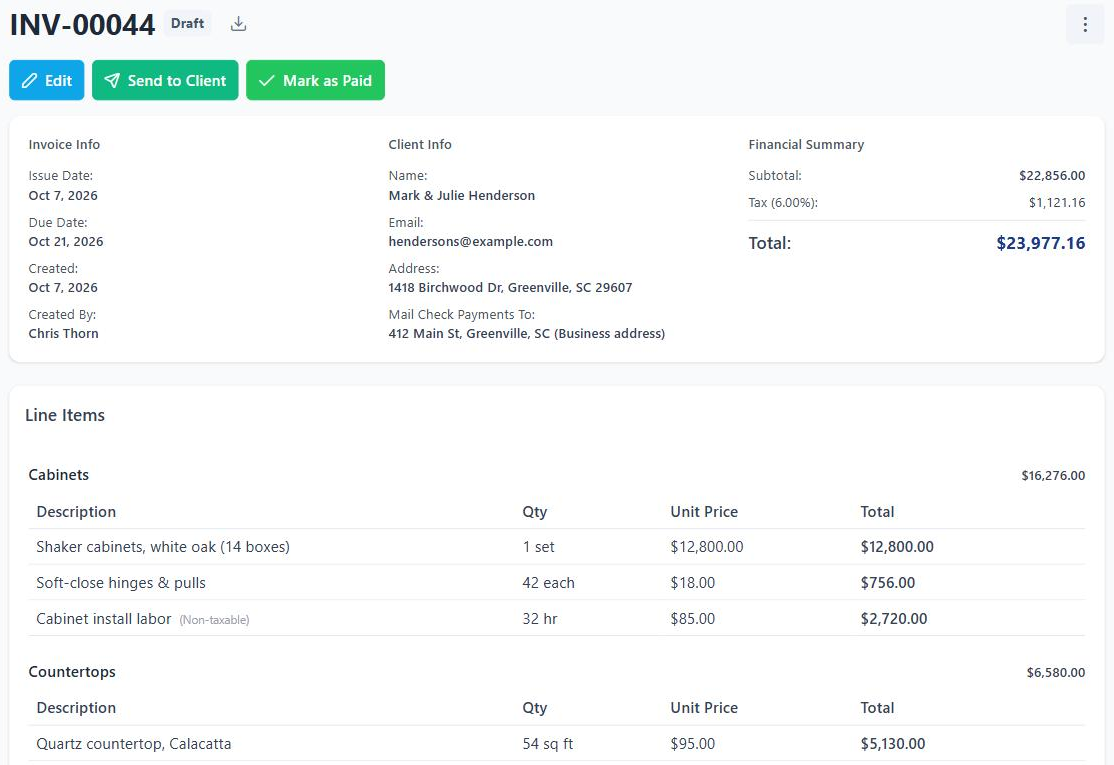
Every invoice shows Draft, Sent, Viewed, Paid or Overdue. Every job shows what's been collected and what's still owed, without a spreadsheet.
Invoice straight from the estimate. Bill in stages.
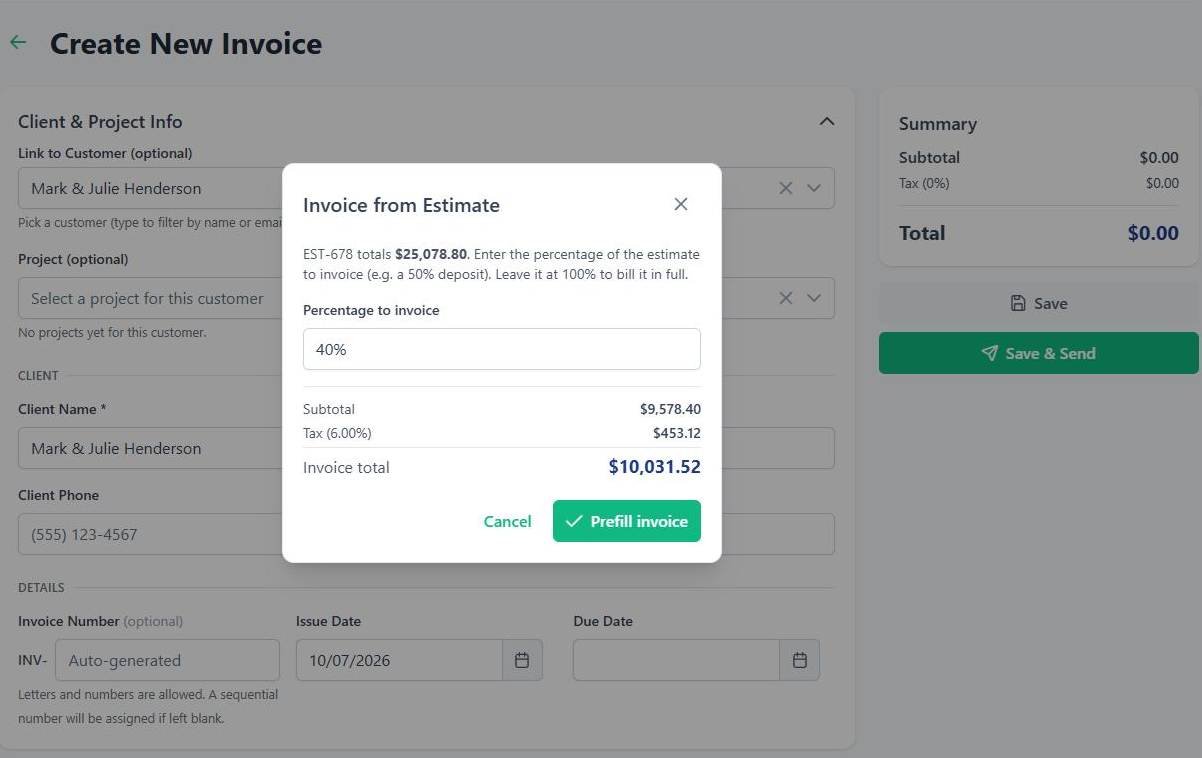
The client already approved the estimate, so don't retype it. Turn it into an invoice in one step, or bill a slice of it: 30% to start, 40% at rough-in, the rest at the walkthrough. Small jobs get a simple flat-rate invoice instead.
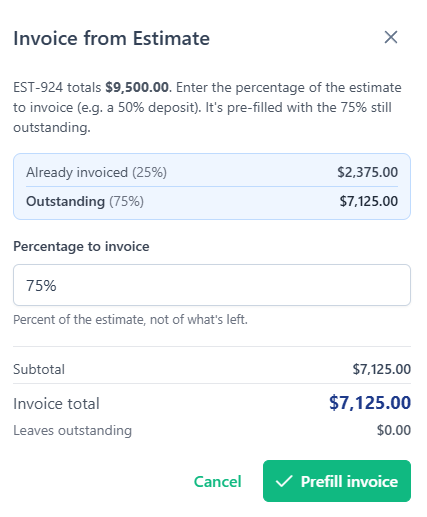
- Progress billing built in. Enter a percentage and the invoice fills itself in, with any discount split fairly across each payment.
- Sections or flat-rate. Group line items into sections like your estimate, or keep it to one line. Your logo goes on the invoice and the PDF.
- Tax only where it belongs. Mark labor lines as non-taxable so tax lands on materials only. Your default tax rate fills in for you.
- Know where each one stands: Draft, Sent, Viewed, Paid or Overdue. You'll see the moment your client opens it.
Get the deposit the moment they say yes.
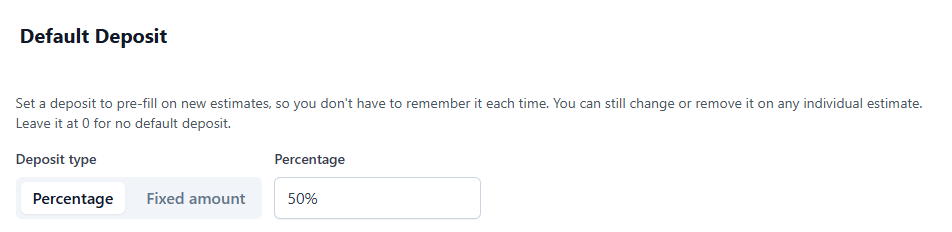
Add a deposit to any estimate. When the client approves it, they pay the deposit online right then, before you buy a single gallon of paint. Set it once as a company default and every new estimate asks for it automatically.
- A percentage or a flat amount. 25% of the job, or a flat $500 to get on the calendar. Your call.
- A company default pre-fills every new estimate, so you never forget to ask.
- Credited automatically. The deposit counts toward the job balance, so the final invoice only asks for what's left.
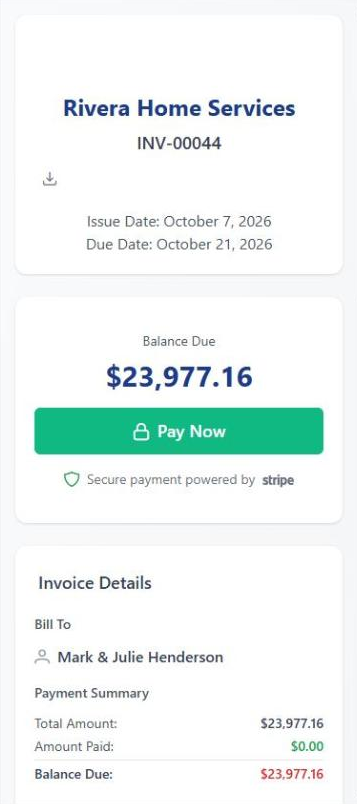
Get paid right from the invoice.
Connect Stripe and every invoice you send gets a Pay Now button. Your client opens it on their phone or computer, pays by card or bank transfer, and the money goes straight to your bank account. No checks to chase and no trips to the bank.
- The invoice keeps itself up to date. When the client pays, the invoice is marked paid and they get a receipt by email. Nothing to reconcile by hand.
- See every payout. Automatic deposits to your bank, plus manual and instant payouts when you need cash sooner. Refunds are a click away.
- Know the second it lands. A "Payment received" notification pops up in the app and on your phone.
Let BuilderBase do the follow-up.
Most of chasing money is remembering to ask. Hand that part off.
Payment requests for any amount
Need a deposit before there's an estimate, or a quick payment for a small fix? Send a payment link for any amount. The client pays online, no invoice needed.
Automatic, polite reminders
Turn on reminders and clients get a gentle nudge about an unpaid invoice or a pending estimate on day 5 and day 10. Two reminders, then it stops. Clients also get a heads-up 24 hours before a scheduled visit. It's off until you switch it on, and it only covers invoices and estimates you send after that.
Bounced email? You'll hear about it
If an invoice email bounces because of a typo in the address, whoever sent it gets an email and a push notification. No more waiting two weeks on an invoice the client never saw.
Paid and overdue, on your phone
When a client pays, you and the person who created the invoice get notified in the app and by push. Overdue invoices get flagged too, so nothing slips.
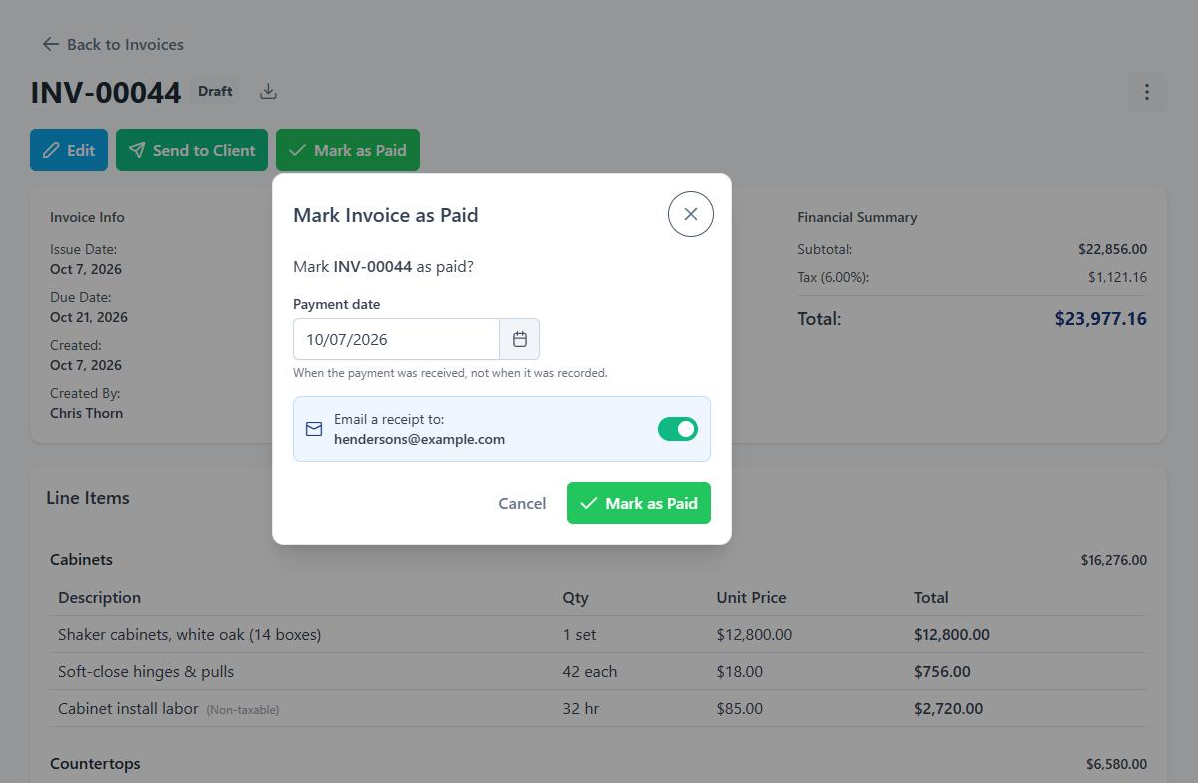
Got a check at the kitchen table? Mark it paid.
Plenty of clients still pay with a check, cash, Zelle or Venmo. Open the invoice, tap Mark as Paid, and pick the day the money came in. No processing fee, no online checkout.
- The real payment date. Got the check last Tuesday and logged it today? It's recorded on Tuesday, so your monthly numbers match your bank.
- A receipt for the client. They get an emailed receipt automatically. Skip it with one switch if you'd rather not.
- Pay in pieces. Deposit now, progress payments along the way, final balance at the end. The job's running balance always shows what's left.
Show the work next to the bill.
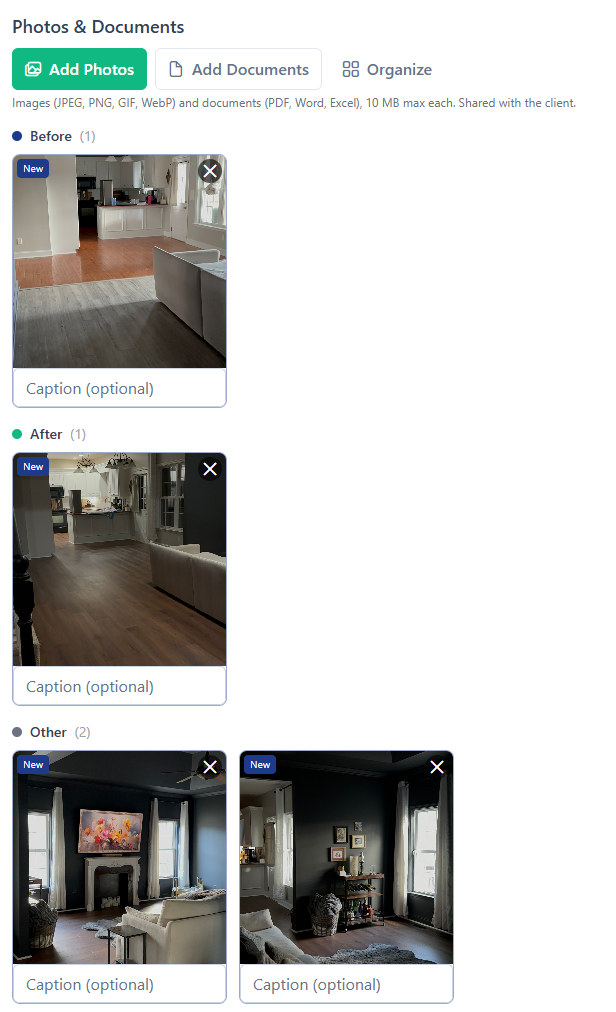
A client who can see the finished deck pays faster than one looking at a number. Attach before and after photos right on the invoice, plus any documents, and the client sees them in their portal when they open it.
- Before, After and Other. Snap photos on site and sort them into groups so the story is obvious.
- Documents too. Warranty info, a material spec sheet, an inspection report.
- Made for the client. Anything you attach to an invoice is visible to them, so attach what you want them to see.
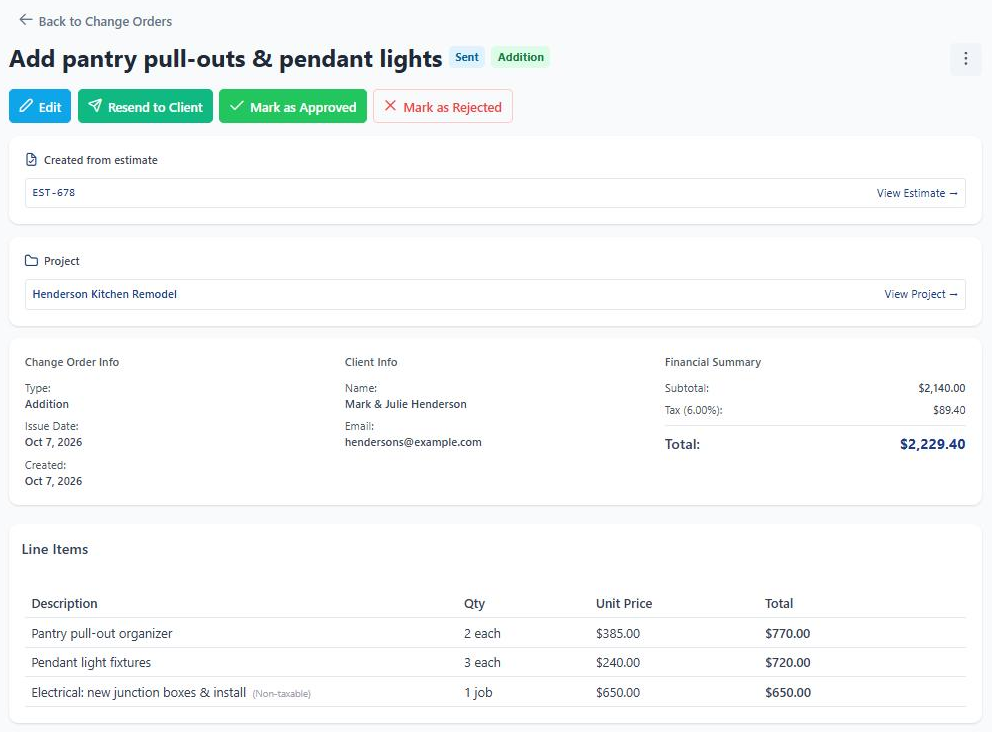
Scope changed? Get it in writing.
The client wants the upgraded vanity, or you open the wall and find rot. Write up a change order in a few minutes: what's added, what's removed, and why. Send it to their portal and get the approval before you do the extra work. No more "I never agreed to that."
- Additions and deductions with a running net total. The client sees exactly what changes and by how much.
- Approved and signed in the portal. The client reviews it and signs electronically. You keep a dated record.
- Flows into the money. Approved change orders update the contract value, and you can pull them into your next invoice.
Always know what's still owed.
Balance left on every job
Your estimates list shows each job's remaining balance: the estimate plus approved change orders, minus everything collected from deposits and invoices. Filter to outstanding jobs and you have your collections list.
QuickBooks Online sync Pro
Invoices sync to QuickBooks Online, so your bookkeeper isn't retyping them at the end of the month.
Invoices, online payments and payment requests are on every plan, Starter ($39/mo) and Pro ($99/mo). Change orders and QuickBooks sync are on Pro. Compare plans
"Half my clients write a check, half want to pay by card. BuilderBase handles both without me running two systems. I send the invoice once, mark the checks paid by hand, the card folks tap and go. My books finally match what's actually in my bank."
Send your next invoice and get paid this week.
Free 7-day trial. No credit card required. Cancel any time.