Switch from Jobber or Housecall Pro without starting over.
Export your data from your old tool, upload the files, and bring your customers, price book, jobs, invoices and estimates with you. You check everything before it's saved, and you can undo the whole import if something looks off.
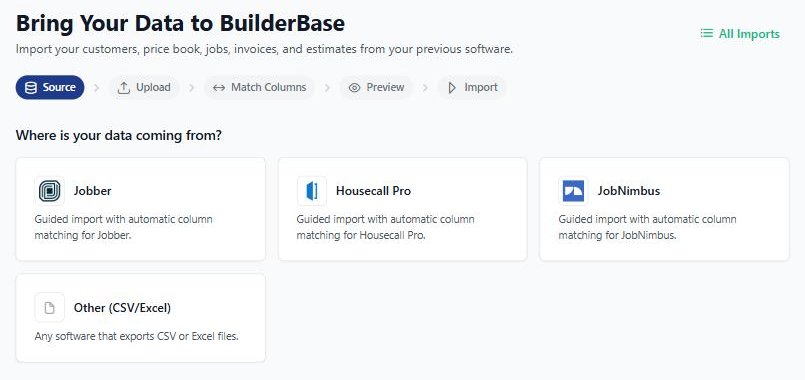
- Jobber
- Housecall Pro
- JobNimbus
- Any CSV
How it works
Three steps, and you
check everything along the way.
The import lives in Settings, under Data Import. You run it yourself, from your own account, whenever you're ready.
Export
Pick the tool you're leaving and download your CSV or Excel exports from it. We show you where each export lives (and so does this page).
Match
Upload the files. BuilderBase suggests a match for every column, and you can change any of them. Then you see a preview with record counts and any rows that have problems.
Import and check
The import runs in the background with live progress, then shows a summary of what came in. If something looks off, undo the whole import and try again.
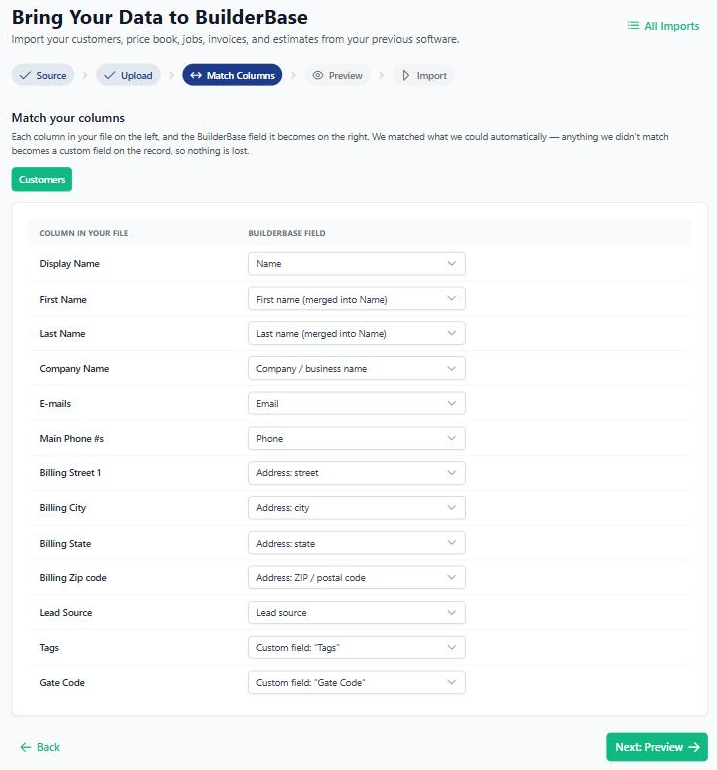
Every column gets a suggested match. Change any you disagree with.
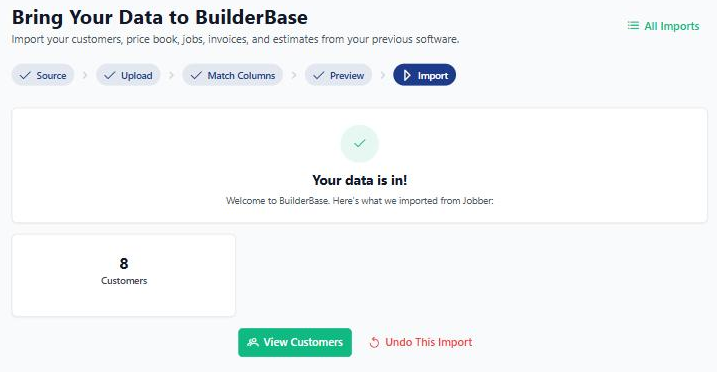
A clear count of what came in, plus one button to undo it all.
What comes over
Your business, not just a contact list.
Invoices and estimates link back to their customer and project from the same import, so your history shows up where you expect it.
| Record type | Jobber | Housecall Pro | JobNimbus | Any CSV |
|---|---|---|---|---|
| Customers Names, contact details and addresses | ||||
| Price book 1 Products and services, taxable or non-taxable | – | |||
| Jobs Come in as projects | ||||
| Invoices With line items, linked to the customer and project | ||||
| Estimates and quotes Linked to the customer and project | ||||
| Recurring jobs 2 Become recurring scheduled jobs on your calendar | – | – |
- 1 JobNimbus doesn't export a price book, so you'll add your products and services in BuilderBase after the import.
- 2 Recurring jobs come over from Jobber or from your own CSV. They land as recurring scheduled jobs on your calendar, which is part of the Pro plan.
Still comparing? See how BuilderBase stacks up against Jobber and Housecall Pro.
Nothing gets left behind
Built so a switch is low risk.
Extra columns become custom fields
If your export has a column BuilderBase doesn't have a field for, it becomes a custom field on the customer, project or scheduled job. You can see and edit it like any other field.
The rest goes into internal notes
On invoices, estimates and price book items, extra details are saved to internal notes, so the information is still there when you need it. Your clients don't see those notes.
Bring your photos and documents
Pick a folder of job photos and documents and BuilderBase matches them to the right projects automatically. That upload can be undone too.
Undo the whole import
Mapped a column wrong? Uploaded last year's file? One click removes everything that import brought in, and you can start fresh.
Re-upload without duplicates
Upload the same file again and BuilderBase updates the records it already imported instead of creating copies. Fix your spreadsheet and run it as many times as you need.
Preview before anything saves
See how many records of each type will come in, and which rows have problems, before you press import. No surprises after the fact.
How to export
Where to find your exports
in your old tool.
Using something else? Any CSV or Excel file works with the Generic CSV option, and you match the columns yourself.
Jobber
You need to be an account admin in Jobber to export.
- 1 Customers
Clients, then More Actions, then Export Clients. Jobber emails you the CSV, split into files of 1,500 clients. Upload all of them.
- 2 Price book
Settings, then Products & Services, then Export to CSV.
- 3 Jobs, invoices, quotes
Reports, then the Jobs Report, Invoices Report and Quotes Report. Pick the full date range, include all columns, then Export to CSV.
- 4 Recurring jobs
Reports, then the Recurring Jobs report, full date range, all columns, Export to CSV.
Housecall Pro
Customer exports are admin only. Large accounts may need to export one year at a time.
- 1 Customers
Customers, then Actions, then Export. Housecall Pro emails you the file.
- 2 Price book
Settings, then Price Book. Export Services and Materials separately and upload both.
- 3 Jobs and invoices
Reports (or SEE ALL JOBS). Pick the full date range and all columns. Make sure the invoice export includes a total column.
- 4 Estimates
Run the Estimates report and export it.
JobNimbus
JobNimbus does not export a price book, so you can add yours in BuilderBase after the import.
- 1 Contacts
Export your contacts list view as a CSV.
- 2 Jobs
Export your jobs list view as a CSV.
- 3 Invoices and estimates
Export each list view as a CSV.
Stuck on an export?
Email us and we'll help. Chris, the founder, answers support himself, usually the same day.
FAQ
Questions about switching.
Will I lose any data?
Can I undo an import?
Do I need to cancel my old tool first?
Does importing cost extra?
Can you help me with the switch?
What about past payments and messages?
Does BuilderBase sync with Jobber or Housecall Pro automatically?
Bring your business with you.
Start a free trial, run the import, and check every record before you cancel anything. 7 days, no credit card.
- Jobber
- Housecall Pro
- JobNimbus
- Any CSV